Join a Server — Xbox & PlayStation
This guide shows you how to connect your Xbox or PlayStation to a custom Bedrock server using the BedrockConnect app.
What you need
- A phone (Android or iOS) with the BedrockConnect app installed
- Your phone and console must be on the same Wi-Fi network
- PlayStation: PS+ membership required
- Xbox: Xbox Game Pass or Xbox Gold membership required
Do not use a VPN, mobile data, or a strict firewall. Your phone and console need to communicate directly over your local network.
Step-by-step
1. Open the app
Launch BedrockConnect and confirm the information prompts.
2. Add a server
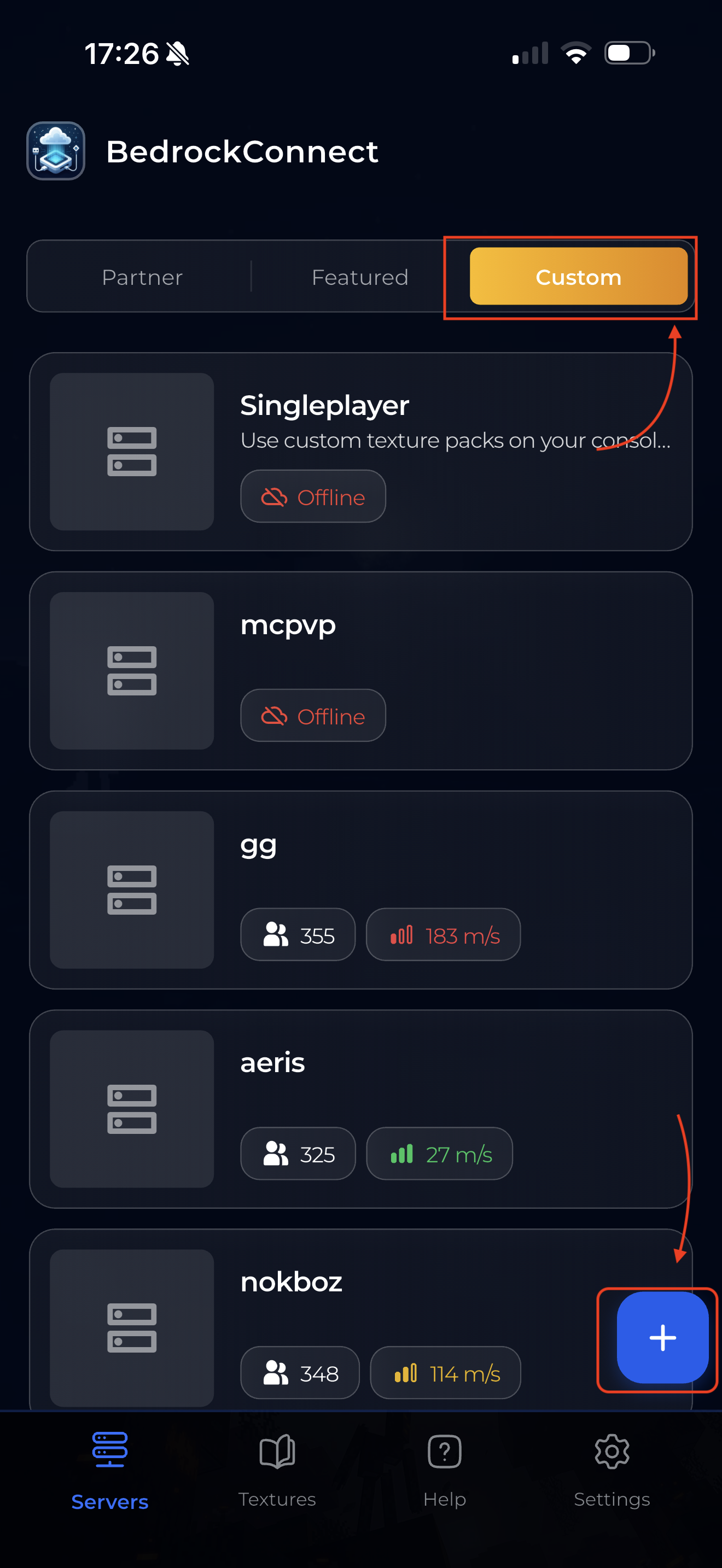
Tap the "Custom" tab at the top, then tap the blue + button in the bottom right. You'll land on the Add Custom Server screen.
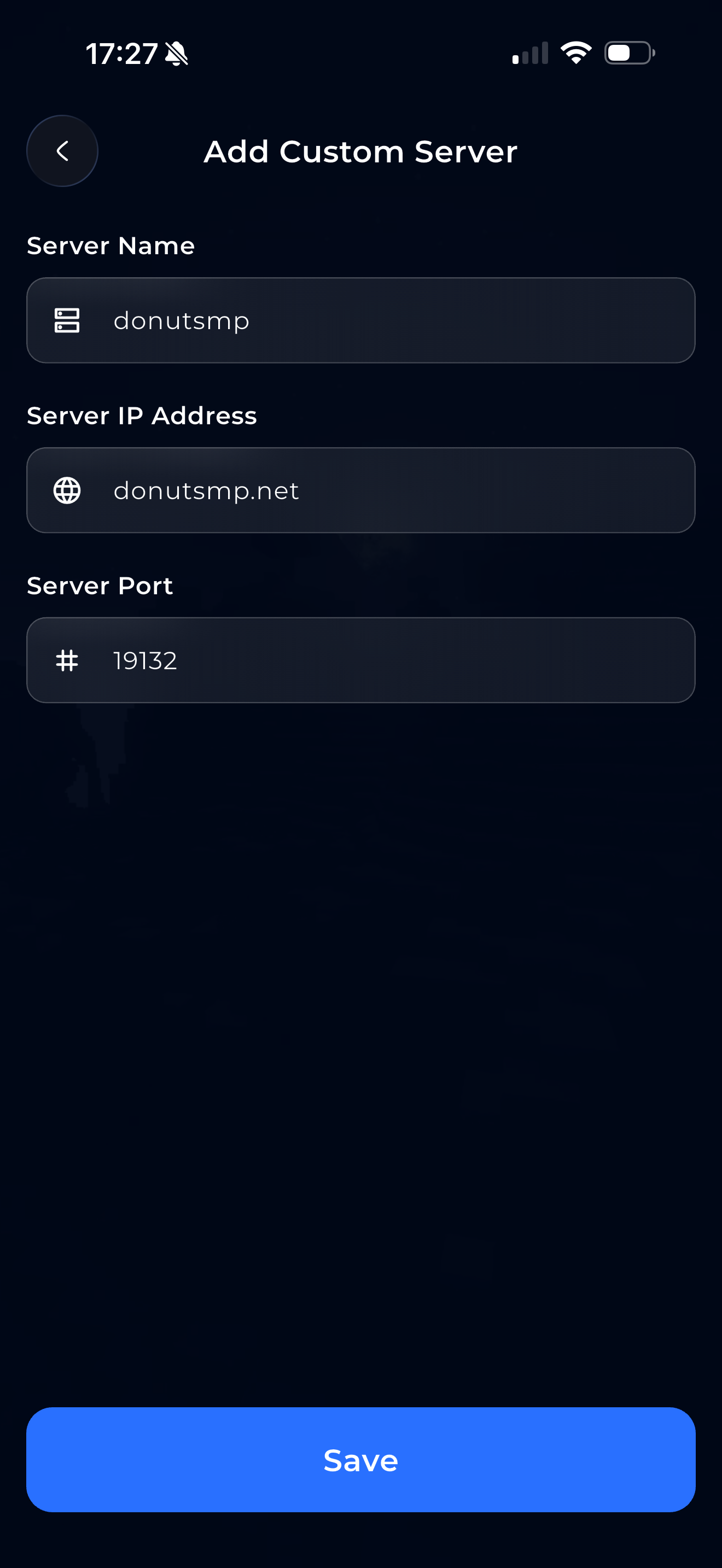
Tap Save. The server must be online and running Minecraft Bedrock Edition.
3. Select and start
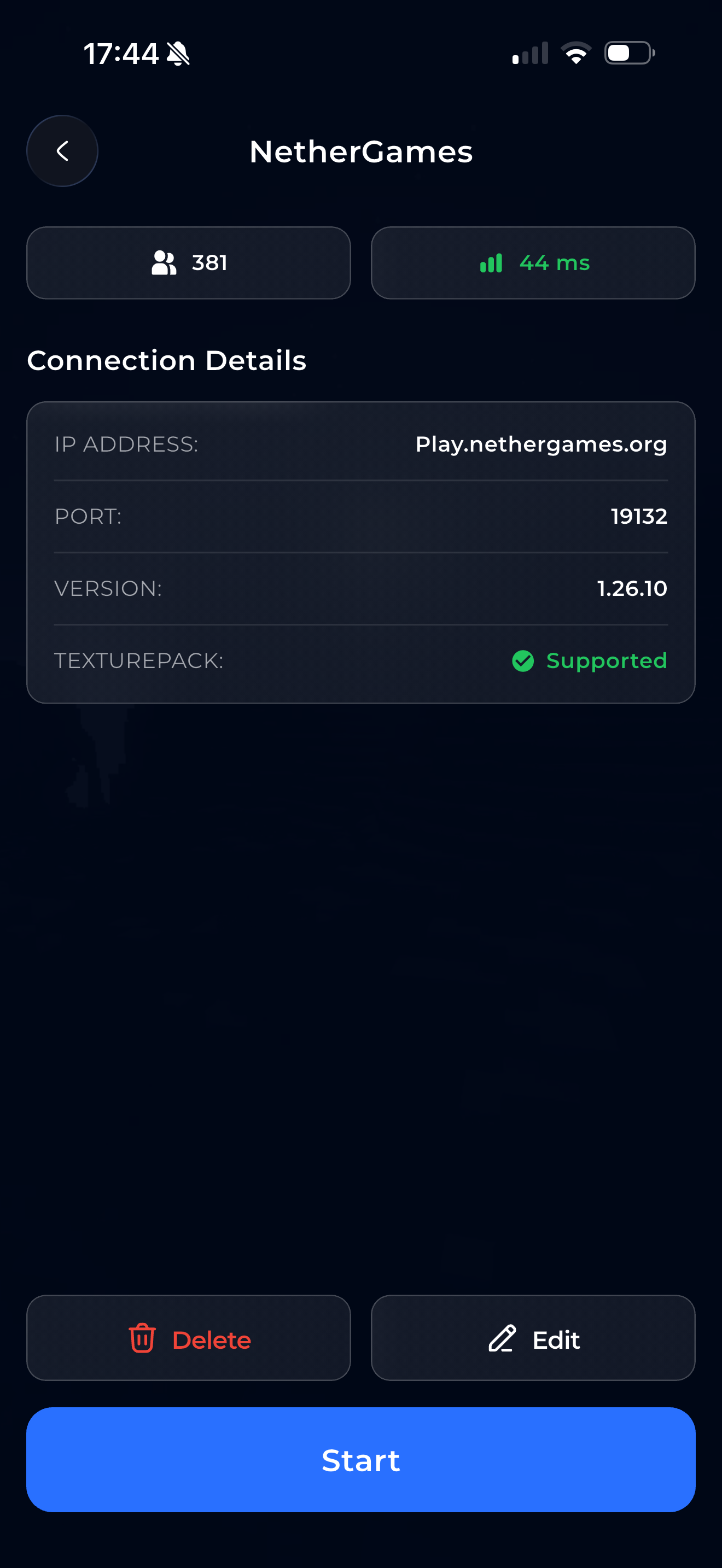
Tap the server you just added. You'll see the server details (IP, port, version). Tap the blue "Start" button at the bottom.
Without Premium, the button says "Watch Ad & Start" — you'll watch a short ad first, then the server starts automatically. With Premium, it starts instantly.
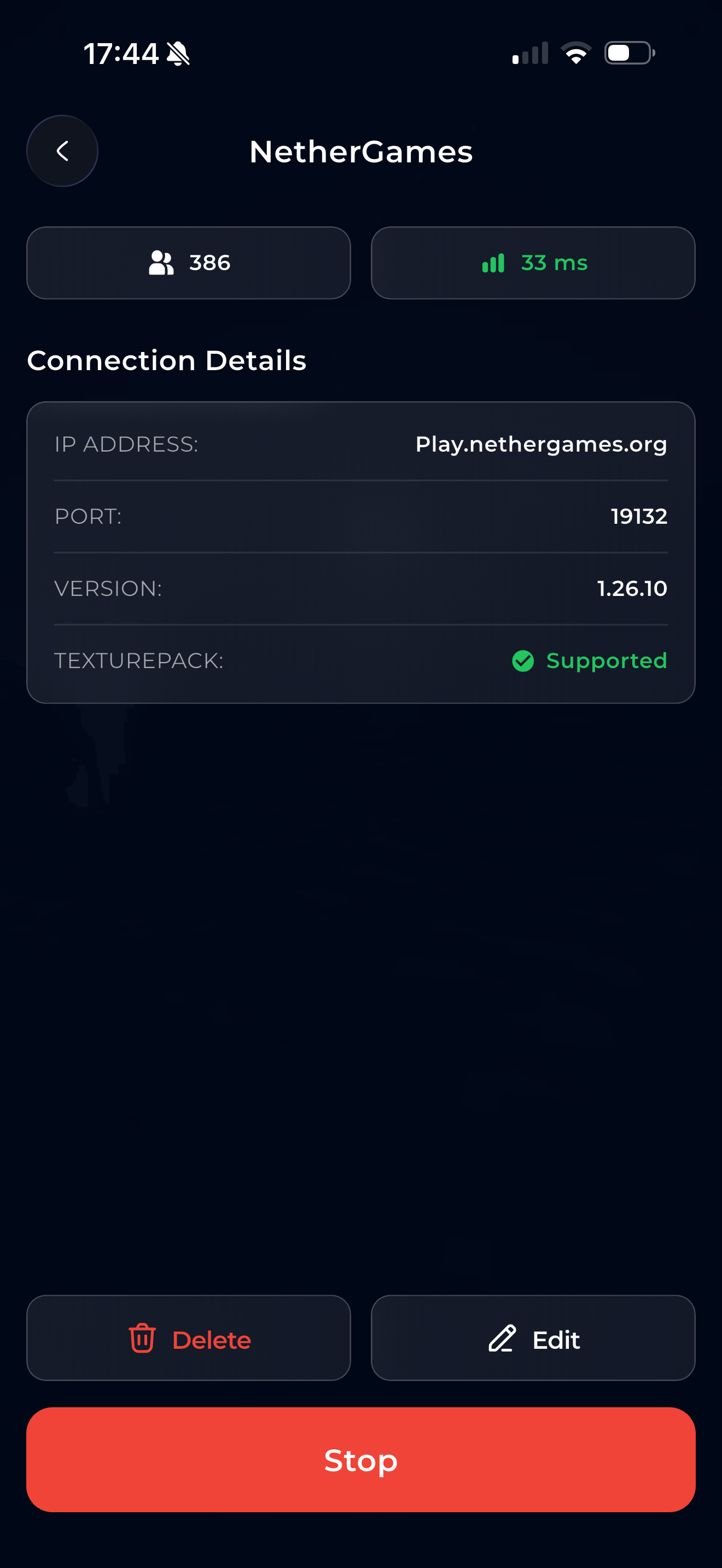
Once the server is running, the button turns red and shows "Stop".
4. Find the server on your console
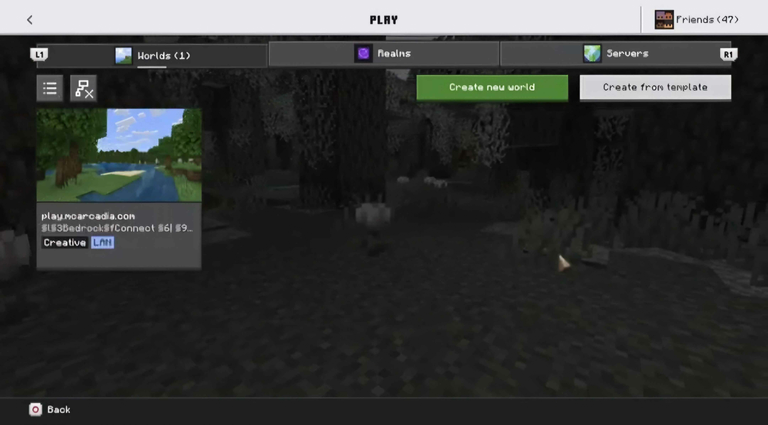
On your console, open Minecraft and look in the world list — you'll see the server appear. Tap it to join.
If the server doesn't appear in your world list, check our Troubleshooting Guide.
5. iOS only: Allow local network access
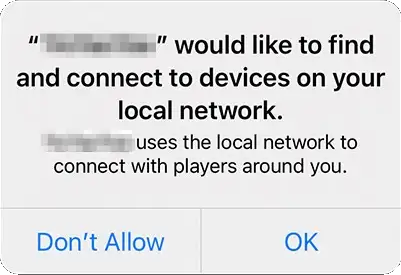
If you're on an iPhone, a popup may appear asking to find and connect to devices on your local network. You must tap OK — without this, BedrockConnect can't communicate with your console.
Go to iPhone Settings → scroll down to BedrockConnect → enable Local Network. Then restart the app.
6. Join on your console
Your console will first connect to BedrockConnect, then redirect you to the target server. This is normal — you're connecting through two servers.
Once you're connected, you can close the app. BedrockConnect only handles the initial connection — it doesn't act as a proxy.